







 15.08.2023
MENU MANAGEMENT
Dear valued partners,
This guide outlines the steps to effectively set up and manage your store’s menu, ensuring customers can easily find and order their preferred items.
How to set up and manage your menu:
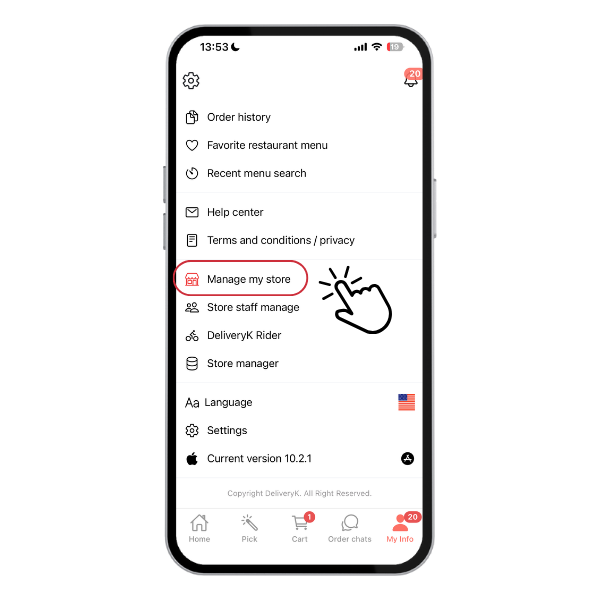
Step 1: Access Store Management
- Open the Delivery K app and log in to your “Partner Account.”
- Navigate in My Info > Manage my store
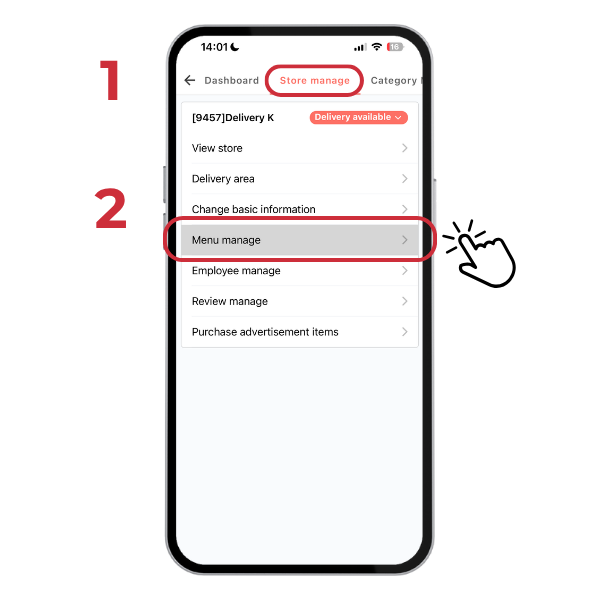
Step 2: Access Menu Management
- In the “Store manage” section, choose “Menu manage” → Update availability status or add/delete options
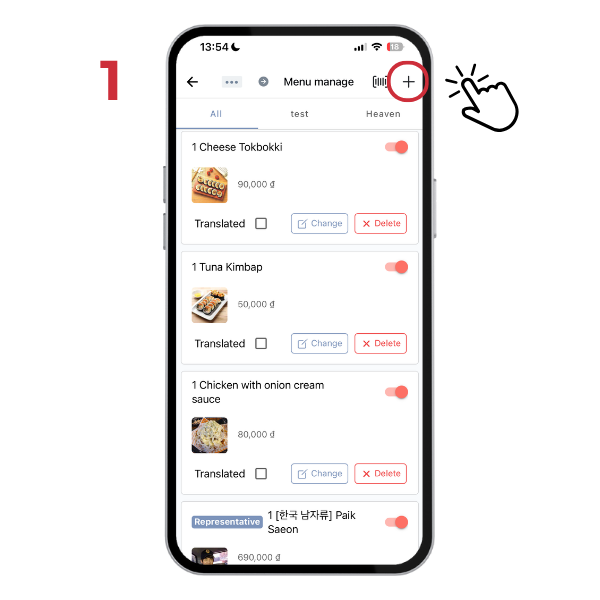
Step 3: Organizing Your Menu with Categories
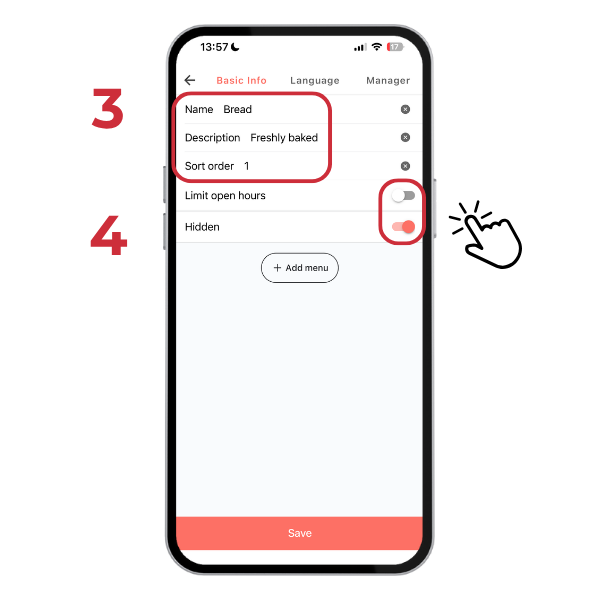
- From the “Menu management” screen, click the ‘+’ button (1) in the top right corner to register a new category.
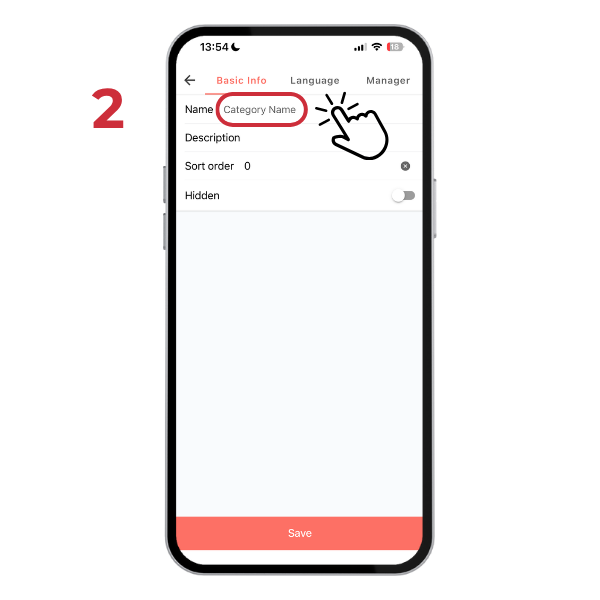
- Click the “Category Name” button (2) to create a new collection (e.g., Coffee, Bagel, Cake).
- Input the category’s Description > Sort order (for its ranking within the menu)
- Input Open hours and Hidden option, then click “Save.”
Creating product collections helps customers browse your offerings more efficiently.
Step 4: Creating and Adding Products to a Category
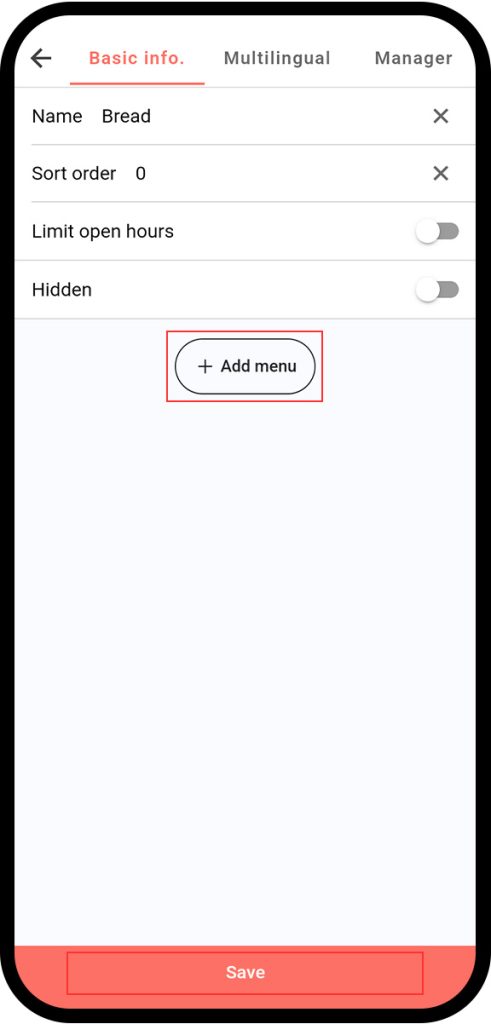
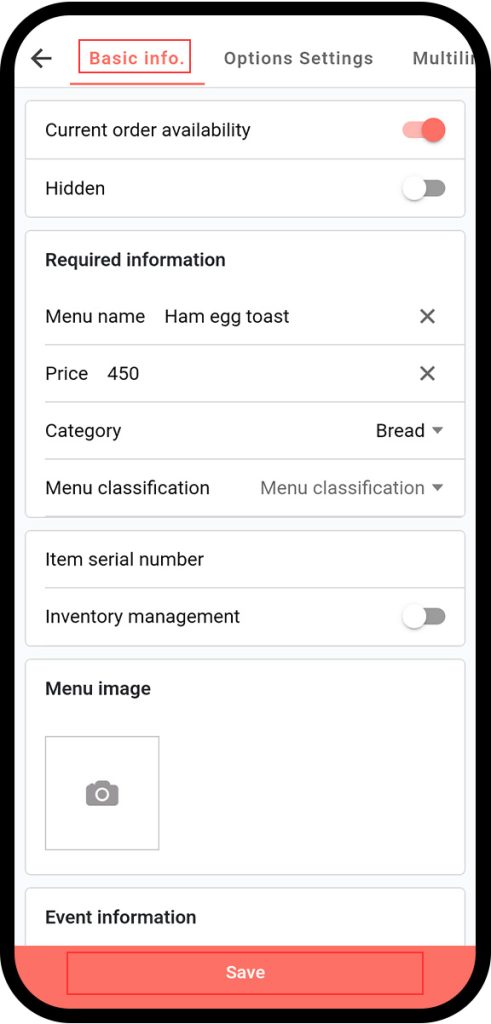
- Select an existing category and click “+ Add Menu.“
- Enter essential product information: Menu name > Price > Menu Image > Product description (if applicable).
- To add more products to the same category, simply click “+ Add Menu” again and repeat the previous step.
Step 5: Optimizing Product Information
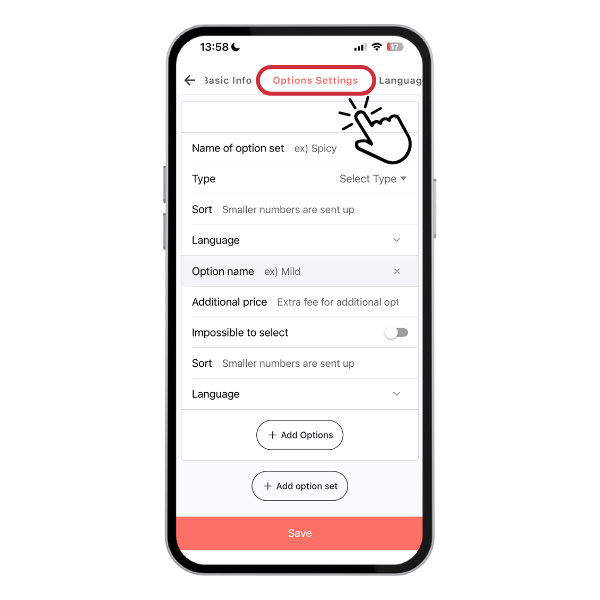
- Utilize “Option Settings” to customize product size/toppings.
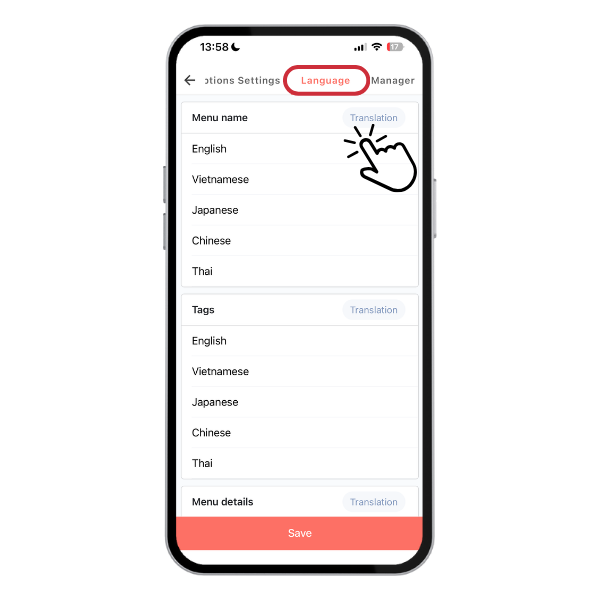
- Expand your customer reach by using the multilingual feature – “Language” to display product information in various languages.
Note: Store owners should update menu regularly to reflect stock availability and to meet evolving customer demands.
Thank you!
Delivery K

Chia sẻ bài viết: